
“Intro to Eclipse” Exercises
Exercise #4: Creating a Basic App
Within Eclipse, Right-click the project name in the explorer and select New → Class
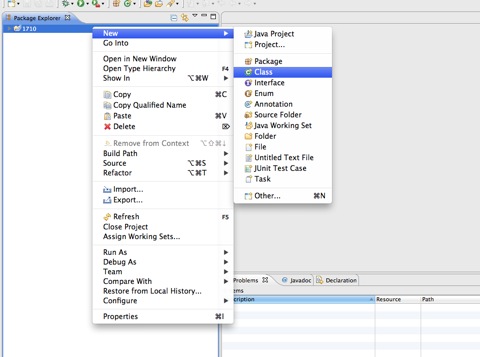
In the resulting dialog box, enter Lab01 as the Class name. NOTE the initial CAPITAL letter.
In Java coding conventions, the names of classes begin with a capital letter. Thus, you should be careful to capitalize the initial letter of any new class you create.
Check the box that asks Eclipse to add a main method for you. The dialog is shown below:

Next you will see this:
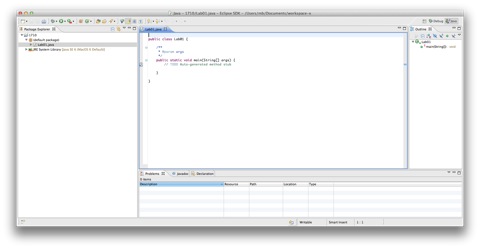
Let's have a look in the body of the main method. You will see a line like this:
// TODO Auto-generated method stub
You can go ahead and delete the entire line. The body of the method will be empty. There should be only blankness between the innermost opening and closing curly braces. In other words, there should be nothing between the "{" and the "}".
Now cut and paste the following lines into the body of the main method. Use Ctrl+C and Ctrl+V for copy and paste between applications.
System.out.println("*******************");
System.out.print("Hello");
System.out.print(" ");
System.out.print("World");
System.out.println();
System.out.println("*******************");
Save the file. File → Save. LEARN THE SHORTCUT for saving, which is Ctrl+S.
You may not notice it, but Eclipse is automatically compiling the program at repeated intervals. A file Lab01.class has been created (although the Package Explorer will not show it, in order to reduce clutter). You can examine it using the File Explorer or the Command Prompt.
Almost certainly the code is not formatted according to coding conventions. You can automatically reformat the code in a class in Eclipse. Select Source → Format.
You will use this command so frequently that you should memorize the keyboard shortcut, which is Ctrl+Shift+F. This step is also described in the page "Formatting Your Code".
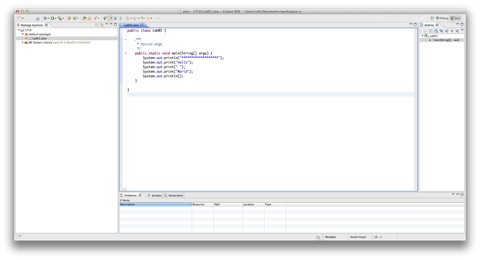
The contents of the editor window should look like what is shown below. By now, you should understand that the body of the main method is the portion in between the inner "{" and "}" (curly braces)
Now we will run the program.Ensure that Lab01.java is selected in the Package Explorer view (click on it). Then select Run → Run.<.p>
A shortcut is to click on the icon that shows a green circle enclosing a right-arrow.

An even faster shortcut is to use the keyboard shortcut, which is ctrl+F11. LEARN THIS SHORTCUT
When the program is running, you will see a couple of things happening. First, in the bottom view, a fourth tabbed pane will appear called "Console".Then next, in that console, the output of the app will appear. It should look like this:

Congratulations!!! You just wrote and invoked your Java application.
A concluding comment....
The best way to learn is TO BE CURIOUS and TO EXPERIMENT. For instance, you can change any of the statements in the program and examine what happens. For instance, notice that there is both println and print statements. Can you identify what each statement does?