EECS2030 Lab 01
Due: before 11:59 Sun May 12
Introduction
REMINDER: Students in the same lab section are allowed and are encouraged to work in groups of 2 students max.
The purpose of this lab is to review the following basic Java concepts that should have been covered in your previous courses:
- style
- using
intanddoublevalues and variables - arithmetic and the methods provided in
java.lang.Math -
booleanexpressions - using objects
-
ifstatements - using
Strings - using
Lists -
forloops
This lab also introduces code testing using JUnit. This lab will be graded for style and correctness.
Before you begin
The API for the class that you need to implement can be found here.
A local copy of the Java API can be found here.
Style Rules
The style rules are not overly restrictive in EECS2030.
1. Your programs should use the normal Java conventions (class names begin with an uppercase letter, variable names begin
with a lowercase letter,
public static final constants should be in all caps, etc.).
2. In general, use short but descriptive variable names. There are exceptions to this rule; for example, traditional loop variables are often called i, j, k, etc.
Avoid very long names; they are hard to read, take up too much screen space, and are easy to mistype.
3. Use a consistent indentation size. Beware of the TAB vs SPACE problem: Tabs have no fixed size; one editor might interpret
a tab to be 4 spaces and another might use 8 spaces. If you mix tabs and spaces, you will have indenting errors when
your code is viewed in different editors.
4. Use a consistent brace style:
// left aligned braces

class X
{
  public void someMethod()
  {
    // ...
  }

  public void anotherMethod()
  {
    for (int i = 0; i < 1; i++)
    {
      // ...
    }
  }
}
or
// ragged braces

class X {
  public void someMethod() {
    // ...
  }

  public void anotherMethod() {
    for (int i = 0; i < 1; i++) {
      // ...
    }
  }
}
5. Insert a space around operators (except the period ".").
The following
    // some code somewhere
    boolean isBetween = (x > MIN_VALUE) && (x > MAX_VALUE);
    int someValue = x + y * z;
is much easier to read than this
    // AVOID DOING THIS

    // some code somewhere
    boolean isBetween=(x>MIN_VALUE)&&(x>MAX_VALUE);
    int someValue=x+y*z;
6. Avoid using "magic numbers". A magic number is a number that appears in a program in place of a named constant. For example, consider the following code:
int n = 7 * 24;
What do the numbers
7 and
24 mean? Compare the code above to the following:
final int DAYS_PER_WEEK = 7;
final int HOURS_PER_DAY = 24;
int n = DAYS_PER_WEEK * HOURS_PER_DAY;
In the second example, the meaning of
7 and
24 is now clear (better yet would be to also rename
n).
Not all numbers are magic numbers. You can usually use the values
0,
1, and
2 without creating a named constant. If you ever find yourself doing something like:
final int TEN = 10;
then you are probably better off using
10 and explaining its meaning in a comment.
7. A good IDE (integrated development environment) such as eclipse will correct many style errors for you. In eclipse, you can select the code that you want to format, right click to bring up a context menu, and choose Source -> Format to automatically format your code.
Getting started
These instructions assume that you have completed Lab 0 and are working in the Prism lab.
Start eclipse by typing
eclipse & into a terminal, or by using the menu located in the bottom left corner of the screen.
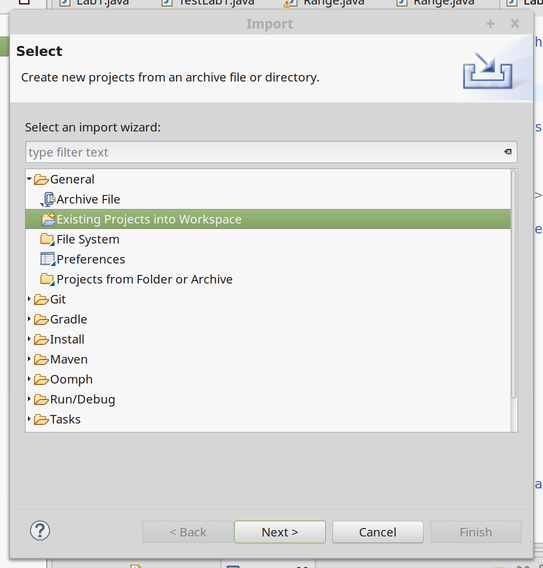
In this lab, you will import an existing project rather than starting everything from scratch. In the eclipse File menu, choose the Import... menu item.
In the
Import dialog box that appears, choose the
Existing Projects into Workspace item and click
Next:
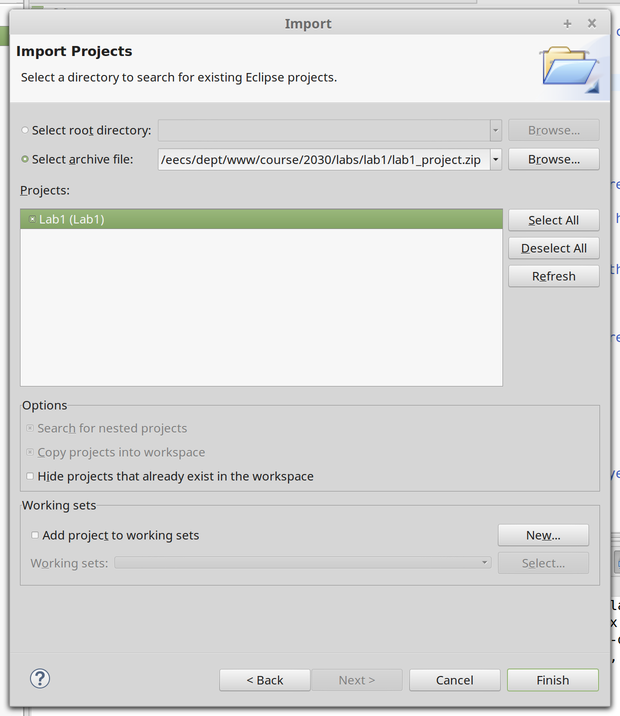
If you are working on a Prism lab computer:
Click on the
Select archive file radio button. Click on the
Browse... button and select the file
/eecs/dept/www/course/2030/labs/lab1/lab1_project.zip. Click the
Finish button to import the project:
If you are NOT working on a Prism lab computer:
Download the
following zip file. Click on the
Select archive file radio button. Click on the
Browse... button and select the file that you just downloaded. Click the
Finish button to import the project.
On the left-hand side of the eclipse window, you will see a tab labelled
Package Explorer. Use the small triangles to expand the
Lab1 contents, then the
src contents, and finally the
eecs2030.lab1 contents. Double-click on
Lab1.java and
TestLab1.java to open these files in the editor:
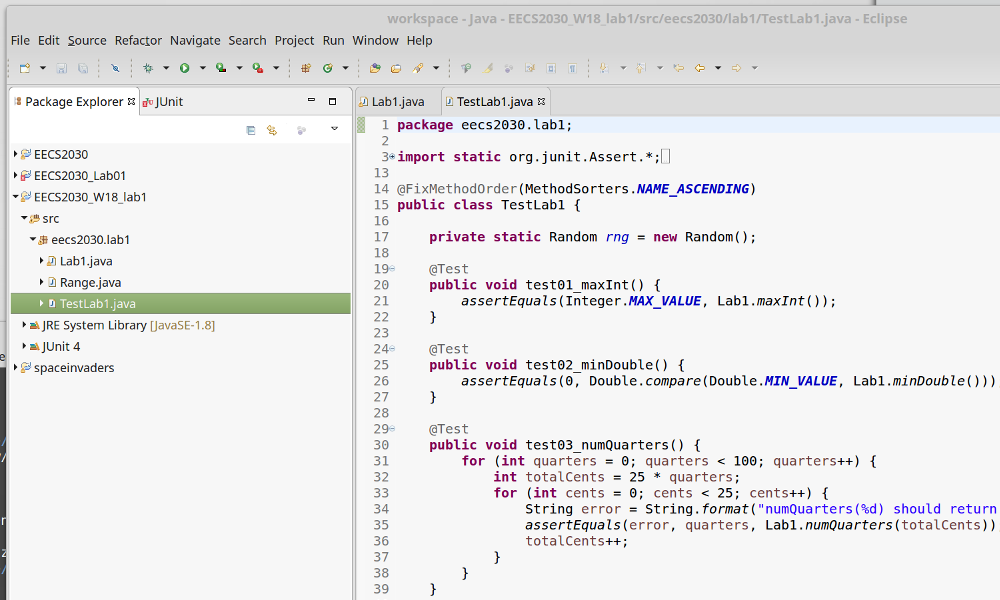
TestLab1.java is a test class that contains unit tests for all of the methods that you will implement in this lab. You will learn
more about unit tests in your next lecture. For now, all you need to know is that you can use the test class to check
for errors in the methods in
Lab1.java.
Click on the
TestLab1.java tab in the editor window to view the contents of
TestLab1.java. Run the test class by pressing the green run button indicated by the red arrow in the figure below:
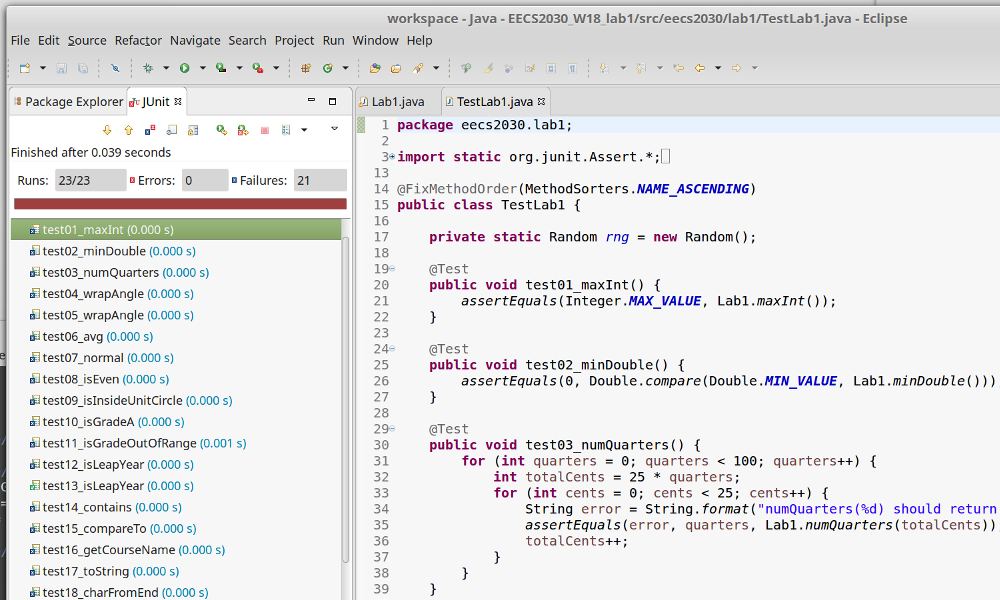
The results of running the tests are shown to you in the
JUnit tab located on the left-hand side of the eclipse window (see figure above). Notice that all of the tests
have a blue x beside them; the blue x indicates that the test has failed. In the
Failure Trace panel, some diagnostic information is shown to you. For the
test01_maxInt test, the diagnostic information is indicating that the test expected a value of
2147483647 but received a value of
0. It seems like there is something wrong with our implementation of the
maxInt method.
Click on the
Lab1.java tab in the editor window to view the contents of
Lab1.java. Scroll down to the
maxInt method (the first method in the class). If you read the API for the method, you will see that the method postcondition
promises to return the maximum value that an
int can represent. However, when you examine the body of the method, you will see that them method returns
0, which is obviously incorrect.
Edit the return value of the method so that it returns the correct value as shown below:

Click on the
TestLab1.java tab in the editor window to view the contents of
TestLab1.java. Re-run the test class; you should see the following:

Notice that the test
test01_maxInt now has a green check mark beside it indicating that the test has passed. Unfortunately, the other 22 tests are
still failing.
In the remainder of this lab, you will use the test class to help you fix the remaining methods in the
Lab1 class. Follow the remainder of the lab to review some fundamentals of the Java language and complete the exercises
in the pink sections. While there appears to be a great deal of work, many of the methods can be completed with a
single line of code.
Primitive types
In Java, all values have a type. A type defines a set of values and the operations that can be performed using those values.
Java's primitive types are those types that are predefined by the Java language and are named by a reserved keyword. The primitive types are all numeric types and one type representing true/false values.
int
The
int type represents integer values in the range -2
31 to (2
31 - 1). Java will interpret any number not having a decimal as being an
int value.
The following is an example of a (not very useful) method that always returns the value of
1. The method creates an
int variable named
result, assigns the variable a value of
1, and returns the value of the variable:
  public static int one() {
    int result = 1;
    return result;
  }
Constant values important to the
int type can be found in the class
java.lang.Integer
.
double
The
double type represents real values in the approximate range of -1.7 × 10
308 to 1.7 × 10
308. Java will interpret any number having a decimal as being a
double value.
The following is an example of a (not very useful) method that always returns the value of
0.5. The method creates a
double variable named
result, assigns the variable a value of
0.5, and returns the value of the variable:
  public static double oneHalf() {
    double result = 0.5;
    return result;
  }
Constant values important to the
double type can be found in the class
java.lang.Double
.
Exercise #1
Complete the methods
maxInt() and
minDouble(). Don't forget that you can always
consult the API to read the documentation for all of the methods.
Run the JUnit tester after you complete each method to check your work.
Arithmetic
Java provides several operators for performing arithmetic operations using
int and
double values:
Assume that you have the following declarations for each example in the table below:
int x = 14;
int y = -7;
double u = 2.5;
double v = -0.9;
| Operator | Name | Example | Value |
| + | unary plus operator |
+x +y +u +v |
14 -7 2.5 -0.9 |
| - | unary minus operator |
-x -y -u -v |
-14 7 -2.5 0.9 |
| * | multiplication operator |
x * y u * v |
-98 -2.25 |
| / | division operator |
x / y u / v |
-2 -2.7777777777777777 |
| % | remainder (after division) operator |
x % y u % v |
0 0.7 |
| + | addition operator |
x + y u + v |
7 1.6 |
| - | subtraction operator |
x - y u - v |
21 3.4 |
Note that there is no exponentiation operator.
Java arithmetic obeys the same order of operations as regular arithmetic. Parentheses can be used in the same way as regular arithmetic to control the order of operations. For example, the following method computes the value of $\frac{1}{1 + x}$
  public static double f_of_x(double x) {
    double result = 1.0 / (1.0 + x);
    return result;
  }
int division
Any arithmetic operation involving two
int values always produces another
int value. Dividing two
int values in Java produces the same result as dividing the two values as real numbers and discarding the fractional
part of the result; an exception is thrown when dividing by
0:
| Expression | True Division | Java Division |
| 6 / 2 | 3 | 3 |
| 7 / 3 | 2.33... | 2 |
| 1 / 2 | 0.5 | 0 |
| -9 / 5 | -1.8 | -1 |
| 3 / 0 | ∞ | ArithmeticException |
A common usage of
int division is when you want to evenly distribute a number of whole items between a number of groups.
  public static int perPerson(int nItems, int nPeople) {
    int result = nItems / nPeople;
    return result;
  }
int remainder
Java provides the remainder after division operator
%. For two
int values
x and
y, the value of
x % y is the
int value equal to the remainder after dividing
x by
y:
| Expression | Java Division |
| 6 % 2 | 0 |
| 7 % 3 | 1 |
| 1 % 2 | 1 |
| -9 % 5 | -4 |
| 9 % -5 | 4 |
| 3 % 0 | ArithmeticException |
The sign of the result is defined to be equal to the sign of the first operand (the value to the left of the
% operator).
A common usage of
int remainder is when you want to find the number of items that remain after evenly distributing a number of whole items
between a number of groups.
  public static int remainder(int nItems, int nPeople) {
    int result = nItems % nPeople;
    return result;
  }
Exercise #2
Complete the methods
numQuarters(int cents) and
wrapAngle(int degrees). To complete these methods, you should first consult the
API for Lab1 to determine the values of
QUARTER_VALUE and
DEGREES_IN_CIRCLE. You should then modify the values of the
public static final constants found near the beginning of the Lab1.java file so that they have the correct values. Once you have edited
theses values, you should implement the methods using the named constants (and not their numeric values).
Run the JUnit tester after you complete each method to check your work.
Mixing
int and
double
Be careful when using
int values to compute a
double value. For example, suppose that you compute the fractional value one-third like so:
double oneThird = 1 / 3; // results in 0.0
Java uses the types of the operands to determine what version of an operator to use. In this case, the
1 and the
3 are both
int literals; therefore, Java uses
int division to compute the value of
1 / 3 before converting the computed value to
double and assigning it to
oneThird.
The solution is convert one or both of the operands to
double to force Java to use
double division; any of the following will work:
double oneThird = 1.0 / 3;
double oneThird = 1 / 3.0;
double oneThird = 1.0 / 3.0;
double oneThird = (0.0 + 1) / 3;
double oneThird = (double) 1 / 3;
Exercise #3
Complete the method
avg(int a, int b).
Run the JUnit tester after you complete each method to check your work.
java.lang.Math
Mathematical functions such as exponentiation, trigonometric functions, roots, and others are provided by methods in the
java.lang.Math class. This class also provides mathematical constants such as $e$ and $\pi$ and many other useful methods relating
to basic mathematics operations.
The amount of time (called the period) required by a pendulum to swing through one complete cycle is approximately:
$t = 2\pi \sqrt{\frac{l}{g}}$
where $l$ is the length of the pendulum and $g = 9.81$ is the acceleration due to gravity. A possible Java implementation of a method to compute the period of a pendulum is given below; observe that the implementation uses a named variable instead of a plain magic number to maintain good readability.
  public static double period(double length) {
    double g = 9.81;
    double t = 2 * Math.PI * Math.sqrt(length / g);
    return t;
  }
Exercise #4
The bell curve is the common name for the normal distribution. The mathematical function describing the standard normal distribution is given by:
$y = \frac{1}{\sqrt{2 \pi}} e^{-x^2 / 2}$
The function $y$ is called the probability density function of the standard normal distribution. Complete the method
normal(double x) that returns the value of $y$ given by the formula above. To compute $e^{-x^2 / 2}$ use the method
Math.exp.
Comparing primitive values
Java's primitive type for representing values that can be
true or
false is named
boolean. One way to generate a
boolean value is to compare two numeric values. Java provides the following equality and comparison operators for numeric
values:
| Expression | Meaning |
| x == y | is the value of
x equal to the value of
y
|
| x != y | is the value of
x not equal to the value of
y
|
| x < y | is the value of
x less than the value of
y
|
| x > y | is the value of
x greater than the value of
y
|
| x <= y | is the value of
x less than or equal to the value of
y
|
| x >= y | is the value of
x greater than or equal to the value of
y
|
An integer is even if the remainder after dividing by
2 is equal to
0. A method that determines if an integer is even could be implemented like so:
  public static boolean isOdd(int x) {
    int remainder = x % 2;
    boolean result = (remainder != 0);
    return result;
  }
Exercise #5
Complete the method
isEven(int x). Implement the method by checking if the remainder after dividing
x by 2 is equal to 0.
Implement the method
isInsideUnitCircle(double x, double y). A point $(x, y)$ is inside the unit circle if $x^2 + y^2
< 1$.
Run the JUnit tester after you complete each method to check your work.
Boolean expressions
boolean values can be combined to produce a new
boolean value using boolean algebra. In boolean algebra, the basic operations are AND, OR, and NOT, and the corresponding
Java operators are:
| boolean operation | Java operator |
| AND | && |
| OR | || |
| NOT | ! |
Use the AND operator
&& to determine if two
boolean values are both true. For example, if you want to determine if a number
x is greater than both
y and
z you could write:
boolean result = (x > y) && (x > z); // is x greater than y and is x greater than z
The parentheses are not necessary because
&& has lower precendence than the comparison operators, but are included in the example to help readability.
Use the OR operator
|| to determine if at least one of two
boolean values are both true. For example, if you want to determine if a number
x is greater than either
y or
z you could write:
boolean result = (x > y) || (x > z); // is x greater than y or is x greater than z
Again, the parentheses are not necessary.
The NOT operator
! negates a
boolean value. Consider the following:
  boolean isEqual = (x == y);
  boolean isNotEqual = !isEqual;
In the example,
isEqual is
true if
x and
y have the same value, and
false otherwise. The value of
isNotEqual is
true if
x and
y have the different values, and
false otherwise.
Exercise #6
Complete the method
isGradeA(double percent). A grade in percent is an A grade if it is greater than or equal to 80 and less than 90. Use the provided named
variables instead of magic numbers in your implementation.
Complete the method
isGradeOutOfRange(double percent). A percent grade is out of range if it is less than 0 or greater than 100. Use the provided named variables instead
of magic numbers in your implementation.
Run the JUnit tester after you complete each method to check your work.
if statement
Java's
if statement lets you choose to execute a block of code depending on a
boolean value. For example, the following method uses an
if statement to validate an input to the method:
  public static double circleCircumference(double radius) {
    if (radius < 0.0) {
      radius = -radius;     // make the radius positive
    }
    return 2.0 * Math.PI * radius;
  }
The method in the above example computes the circumference of a circle given a radius. The method first checks if the value
of
radius is negative; if
radius is negative, the code inside the block of the
if statement is run (shown in red). The code inside the block simply converts the value of
radius to the correct positive value. If
radius is not negative, then the block in red does not run. Whether or not the block in red runs, the value of the circumference
is computed and returned.
Instead of correcting the negative radius value, we might have chosen to indicate that an error has occurred by throwing an exception:
  public static double circleArea(double radius) {
    if (radius < 0.0) {
      throw new IllegalArgumentException("negative radius");
      // method stops running here because an exception was thrown
    }
    return Math.PI * radius * radius;
  }
The method in the above example computes the area of a circle given a
radius. The method first checks if the value of
radius is negative; if
radius is negative, the code inside the block of the
if statement is run (shown in red). The code inside the
block creates an
IllegalArgumentException object and throws the exception.
Throwing the exception causes the method to stop running immediately. If
radius is not negative, then the block in red does not run,
and the area is computed and returned.
Exercise #7
Complete the method
isLeapYear(int year) that determines if a given year is a
leap year. The first calculation that the method should perform is to
check if the given year is less than zero and throw the appropriate
exception if necessary.
Run the JUnit tester after you complete each method to check your work.
Exercise #8
Complete the method
isPythagTriple(int a, int bm int c). In this method, a, b, and c
are three integers. The method shall return true if a, b, and c can form a Pythagorean triple.
"Pythagorean triples" are integer solutions to the Pythagorean Theorem, $a^2 + b^2 = c^2$.
Consider the following examples:
	isPythagTriple(4,3,5)    output: true
	isPythagTriple(5,3,4)    output: true
	isPythagTriple(6,3,5)    output: false
	isPythagTriple(1,1,2)    output: false
Run the JUnit tester after you complete each method to check your work.
if-else statement
An
if-else statement causes exactly one of two separate blocks of code to run depending on a
boolean value. For example, the following method computes the minimum of two values using an
if-else statement:
  public static int min2(int x, int y) {
    int min;
    if (y < x) {
      min = y;
    }
    else {
      min = x;
    }
    return min;
  }
In the above example, the red block is run if the value of
y is less than the value of
x; otherwise, the block in blue is run. After the red or blue block runs, the value of
min is returned.
Exercise #9
Complete the method
contains(double x, Range range). Remember to consult the
API for Range
to see how to use a range object.
Run the JUnit tester after you complete each method to check your work.
Chained
if-else statement
In situations where exactly one of several blocks of code must run, you can chain multiple
if-else statements together:
  public static int contains2(double x, Range range) {
    int result;
    if (x <= range.getMinimum()) {
      result = -1;
    }
    else if (x >= range.getMaximum()) {
      result = 1;
    }
    else {
      result = 0;
    }
    return result;
  }
The example code above determines if a value
x lies to the left of a
Range, the right of a
Range, or is strictly inside the
Range. The red block is run if
x is less than or equal to the minimum value of the range, otherwise the blue block is run if
x is greater than or equal to the maximum value of the range, otherwise the purple block is run. After the red, blue,
or purple block runs, the value of
result is returned.
Exercise #10
Complete the method
compareTo(Range r1, Range r2). Try to use a chained if-else statement in your implementation.
Run the JUnit tester after you complete each method to check your work.
Strings
A
String is a sequence of zero or more characters. A
String can be written as a sequence of zero or more characters enclosed by quotation marks:
String s = "";           // the empty string
String t = "Hello";
The following method returns the title of this course as a
String:
  public static String getCourse() {
    return "EECS2030";
  }
An important feature of Java strings is that once you create a
String instance it is impossible to change its sequence of characters. This is because the
String class provides no
mutator methods (methods that mutate, or modify, the state of a
String instance). If you need to change the sequence of characters of a
String, you must create a new
String instance.
Exercise #11
Complete the method
getCourseName().
To complete this method, you should first consult the
API for Lab1 to determine the value of
COURSE_NAME. You should then modify the value of the
public static final constant found near the beginning of the Lab1.java file so that it has the correct values.
Run the JUnit tester after you complete each method to check your work.
String concatenation
Two
String instances can be joined, or
concatenated, using the
+ operator; this results in a new
String instance. For example, the string
"Hello, world" could be created using concatenation like so:
String u = "Hello" + ", " + "world";
The following method returns the title of this course and the course
name separated by a space (notice that there is a space at the end of
the string "EECS2030 "):
  public static String getCourseWithName() {
    return "EECS2030 " + Lab1.getCourseName();
  }
The following method returns the title of this course and the course name separated by a user-defined separator
String:
  public static String getCourseWithName(String separator) {
    return "EECS2030" + separator + Lab1.getCourseName();
  }
Exercise #12
Complete the method
toString(Range r). Your implementation will need to use
methods from Range to get the minimum and maximum values
from the range reference r.
Run the JUnit tester after you complete each method to check your work.
String length and indexing
Individual characters can be retrieved from a
String using an integer index. The first character has an index of
0, the second character has an index of
1, and so on. The last character of a
String having
n characters is
(n - 1). For example, the characters of the string
"abcd" have the following indices:
| Index | Character |
| 0 | 'a' |
| 1 | 'b' |
| 2 | 'c' |
| 3 | 'd' |
The
String method
charAt(int index) returns the character at the given
index. The following method returns the first character of a non-empty string:
  public static char firstChar(String s) {
    if (s.isEmpty()) {
      throw new IllegalArgumentException("string has length 0");
    }
    return s.charAt(0);
  }
The
String method
length() returns the length (number of characters) of a string. The following method returns the last character of a non-empty
string:
  public static char lastChar(String s) {
    if (s.isEmpty()) {
      throw new IllegalArgumentException("string has length 0");
    }
    return s.charAt(s.length() - 1);
  }
Exercise #13
Complete the method
charFromEnd(String s, int n). The first calculation that
the method should perform is to determine if the character located n
positions from the end of the string exists; if such a character does
not exist, then the method should throw an exception.
Run the JUnit tester after you complete each method to check your work.
Lists
A
List is a data type that represents a sequence of elements where all of the elements have the same type. Java lists use
Java's generic notation to indicate the type of the elements:
| List declaration | Meaning |
| List<Integer> t; |
t is a list of
Integer references |
| List<Double> u; |
u is a list of
Double references |
| List<String> v; |
v is a list of
String references |
| List<Range> w; |
w is a list of
Range references |
List indexing and length
Like strings, lists use a
0-based index to access individual elements. The
get method is used to get the value of an element using an index. Assume that
t is the list of 4
Double references
[-0.33, 0.25, 8.99, 24.01] and that
elem is a variable of type
double; then the following table shows the results of indexing into the list:
| Expression | Value of
elem
|
| elem = t.get(0); | -0.33 |
| elem = t.get(1); | 0.25 |
| elem = t.get(2); | 8.99 |
| elem = t.get(3); | 24.01 |
| elem = t.get(4); | throws an
IndexOutOfBoundsException
|
The
set method is used to set the value of an element using an index. Assume that
t is the list of 4
String references
["abc", "xyz", "123", "###"]; then the following table shows the results of setting the elements of the list:
| Expression | Elements of
t
|
| ["abc", "xyz", "123", "###"] | |
| t.set(0, "ABC"); | ["ABC", "xyz", "123", "###"] |
| t.set(1, "XYZ"); | ["ABC", "XYZ", "123", "###"] |
| t.set(2, "789"); | ["ABC", "XYZ", "789", "###"] |
| t.set(3, "***"); | ["ABC", "xyz", "789", "***"] |
| t.set(4, "oops"); | throws an
IndexOutOfBoundsException
|
The number of elements in a list is returned by the
size method.
The following method swaps the position of the elements in a list of size 2:
public static void swap2(Listt) { if (t.size() != 2) { throw new IllegalArgumentException("list size != 2"); } // get the first two elements int t0 = t.get(0); int t1 = t.get(1); // set the first two elements swapping their original order t.set(0, t1); t.set(1, t0); }
Exercise #14
Complete the method
sort2(List<Double> t).
Run the JUnit tester after you complete each method to check your work.
for-each loops
Many tasks involving lists require using
but not setting each element in the list. To visit each element of a list (sequentially from the first element
to the last) you can use a
for-each loop. The following is an example of a
for-each loop that simply prints each element of a list of strings on a separate line:
  public static void print(List<String> t) {
    for (String s : t) {
      System.out.println(s);
    }
  }
The loop above reads as "for each
String s in
t." Inside the body of the loop (shown in red), you use the variable
s to refer to the current string in the list
t. The loop body runs once for each element of
t starting with the first element of
t and ending with the last element of
t. If the list
t is empty then the loop body never runs (and the method does nothing).
Looping over the elements of a sequence is called
iterating over the sequence. Iterating over a sequence of $n$ elements with a
for-each loop requires running the loop body $n$ times; each time the loop body runs is called an
iteration of the loop.
The following is slightly more complicated example that finds the greatest value in a list of
Integer values:
  public static int max(List<Integer> t) {
    int result = Integer.MIN_VALUE;
    for (Integer elem : t) {
      if (elem > result) {
        result = elem;
      }
    }
    return result;
  }
The method starts by assuming the largest value in the list is the
smallest possible
Integer value. The method then uses a
for-each loop to iterate over the elements of the list. During each iteration, the current element of the list is compared
to
result; if the current element is greater than
result then we know that we've found an element that is greater than the greatest element seen so far, and we store the
value of the element in
result. After iterating over all of the elements,
result holds the greatest value of the elements in the list.
Exercise #15
Complete the method
frequency(List<Double> t, String target).
This method should count the number of strings in the list
t that are equal to the string target.
Your implementation should use a for-each loop to
iterate over the elements of the list t; inside
the loop, you should use the string method equals
to check if the element is equal to target. Don't
use the == operator to check if two strings are
equal; you use == to check if two primitive values
are equal and you should normally use the method equals
to check if two references are equal.
Your implementation will also require a variable that acts as
a counter to store the number of times that you find a string
in the list t equal to target.
Run the JUnit tester after you complete each method to check your work.
for loops
The
for-each loop has a very clean and simple syntax, but it is not usable if you need to set the value of an element while
iterating over the list. For example, suppose that you have a list of temperatures in degrees Fahrenheit and you
want to convert the values to degrees Celcius. If you try using a
for-each loop you will run into a problem:
  /**
   * Convert a list of temperatures in Fahrenheit to Celcius
   */
  public static void toCelcius(List<Double> t) {
    for (Double fahr : t) {
      // convert fahr to degrees Celcius
      double cel = (fahr - 32.0) * 5.0 / 9.0;

      // how do you set the element in t without an index?
    }
  }
In this situation we need an index to set the appropriate element of the list. This can be done using an ordinary
for loop:
  /**
   * Convert a list of temperatures in Fahrenheit to Celcius
   */
  public static void toCelcius(List<Double> t) {
    for (int i = 0; i < t.size(); i++) {

      // get element i
      double fahr = t.get(i);

      // convert fahr to degrees Celcius
      double cel = (fahr - 32.0) * 5.0 / 9.0;

      // replace element i
      t.set(i, cel);
    }
  }
The
for statement has three parts:
- initialialization expression : runs once before the loop begins and usually declares a loop variable that can be used inside the loop body
-
logical expression
: is a
booleanexpression that is evaluated at the beginning of each iteration. If the logical expression evaluates totruethe loop body runs, otherwise the loop stops. The logical expression usually, but not always, involves the loop variable. - increment expression : is evaluated at the end of each loop iteration. The increment expression usually, but not always, modifies the value of the loop variable.
In the above example, the:
-
initialialization expression
creates an
intloop variable namedithat represents the index of the element in the list that we want to manipulate on the current iteration -
logical expression
compares the index
ito the size of the list. If the index is smaller than the size of the list, then the loop runs. - increment expression At the end of each iteration, the index is increased by one so that the next iteration of the loop can manipulate the next element in the list
If you trace through the above loop using a list of $n$ elements, you'll see that the value of the loop variable
i follows the sequence
0, 1, 2, ..., (n - 1).
Exercise #16
Complete the method
repair(List<Integer> t). In this method, t
is expected to be an almost sorted list; for example, consider the following
almost sorted list:
[0, 5, 10, 9, 20, 22, 37, 150, 99, 200]
The above list is almost sorted in ascending order except that some pairs
of adjacent elements are out of order. The adjacent pairs 10, 9 and
150, 99 are out of order. If we switched the elements of the pairs
to 9, 10 and 99, 150 the entire list would be in
sorted order. This is what the method repair should do.
The first observation you should make is that if the list t
has fewer than 2 elements then there is nothing for the method to do because
the list is already sorted. The starter code provided to you already deals
with this situation.
To complete the implementation of repair, you should write a
loop that starts at index $i = 0$ and stops at the second last index of
the list (not the last index of the list). Inside the loop body, you should
get elements $i$ and $i + 1$ from the list and store those elements in two
separate variables. You should then compare those elements; if
element $i$ is greater than element $i+1$, you should swap the two
elements. In other words, you should set element $i$ so
that its new value is equal to the original element at index $i + 1$ and you
should set element $i + 1$ so that its new value is equal to the original
element at index $i$.
Run the JUnit tester after you complete each method to check your work.
Submit for students NOT working in a group
If you are
not working in a group, submit your solution using the
submit command. Remember that you first need to find your workspace directory, then you need to find your project directory.
In your project directory, your files will be located in the directory
src/eecs2030/lab1
submit 2030 lab1 Lab1.java
Submit for students working in a group
If you are working in a group, create a plain text file named
group.txt. You can do this in eclipse using the menu
File -> New -> File. Type your login names into the file with each login name on its own line. For example, if
the students with login names
rey, and
finn, worked in a group the contents of
group.txt would be:
rey
finn
Submit your solution using the
submit command. Remember that you first need to find your workspace directory, then you need to find your project directory.
In your project directory, your files will be located in the directory
src/eecs2030/lab1
submit 2030 lab1 Lab1.java group.txt
Submit your work from outside the Prism lab
It is possible to submit work from outside the Prism lab, but the process is not trivial; do not attempt to do so at the last minute if the process is new to you. The process for submitting from outside of the Prism lab involves the following steps:
- transfer the files from your computer to the undergraduate EECS server red.eecs.yorku.ca
- remotely log in to your EECS account
- submit your newly transferred files in your remote login session using the instructions for submitting from within the lab
- repeat Steps 1 and 3 as required
Windows users will likely need to install additional software first. Mac users have all of the required software as part of MacOS.